

Inviting your team
Add colleagues to your workspace, assign their role, and manage seats.
With the workspace set up, it's time to bring people in. Inviting a colleague gives them access to the shared documents, playbooks and settings — under a role you choose, so everyone has exactly the access they need and no more.
By the end you'll know how to invite a colleague, set their role, and manage who's in the workspace.
This is for owners and admins, under Settings → Organization → Members. Each member uses a seat — if your plan is full, you'll be prompted to add seats before inviting.
Open the Members page
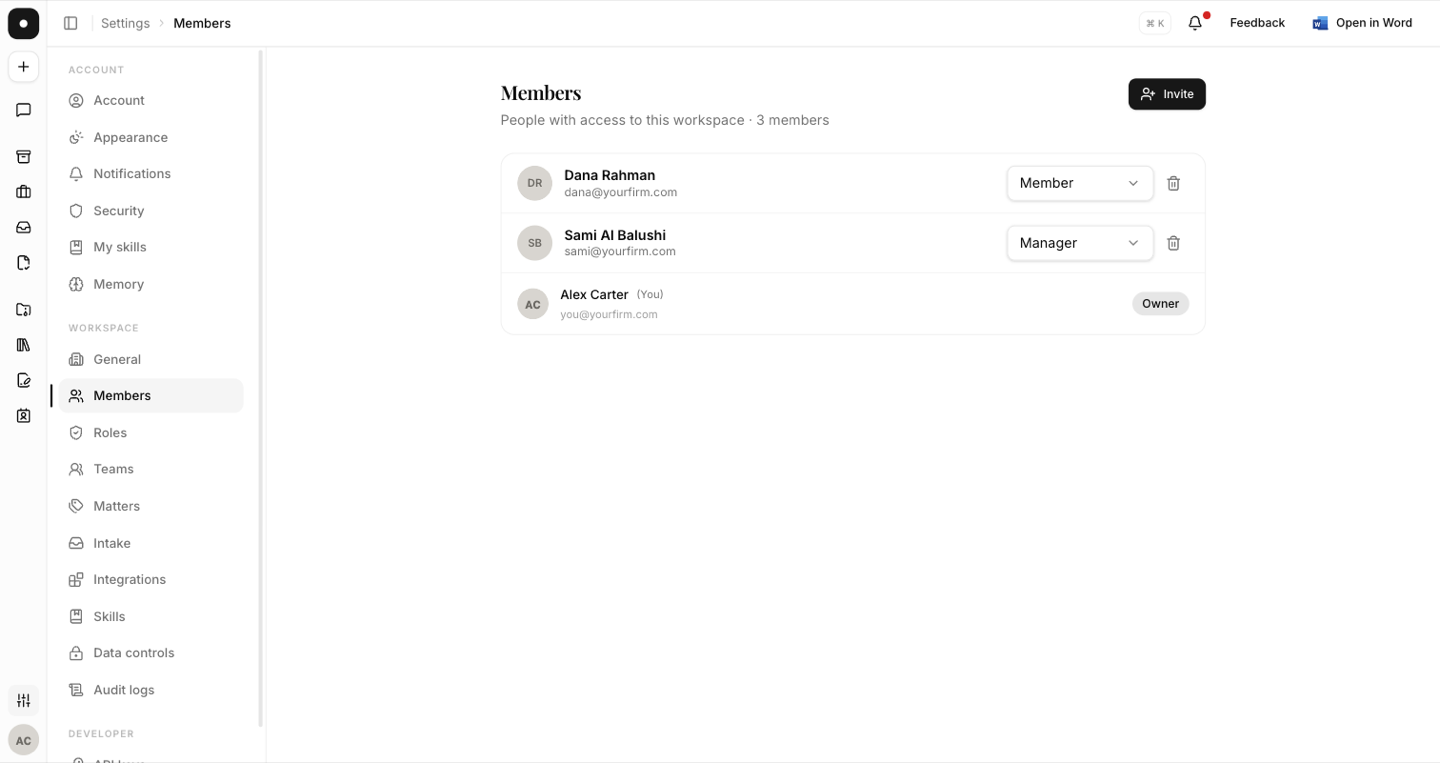
Under Settings → Organization → Members you'll see everyone currently in the workspace, their role, and how many seats are in use.
Invite by email, with a role
Add a colleague's email and pick the role they should join with — typically Member for everyday users, or Admin for the few who help run the workspace. They'll get an invitation to join.
Decide roles before you invite at scale. Most people should be Members; reserve Admin for those who manage billing, people and settings. The next lesson, Roles & permissions, covers this in full.
Manage people over time
The same page is where you keep things tidy as the team changes — promote someone to a new role, or remove a member when they leave. Access updates take effect immediately.