Lesson 38 of 55
Installing the add-in
Add the instaSpace add-in to Microsoft Word so the assistant lives next to your document.
If a lot of your work happens in Word, you can bring the assistant to it. The instaSpace add-in opens in a side panel next to your document, so you can review, redline and draft without switching apps.
By the end you'll have instaSpace running in a panel inside Word.
You'll need a supported Microsoft 365 plan and permission to install add-ins. If your organization manages add-ins centrally, your admin installs it for you — see Microsoft 365 admin setup.
Install from within Word
- In Word, open the Home tab and choose Add-ins (or Get Add-ins).
- Search for instaSpace and select Add. Word installs it and adds it to your ribbon.
- Launch instaSpace from the ribbon to open the side panel, and sign in with the same account you use on the web.
Or launch it from the web
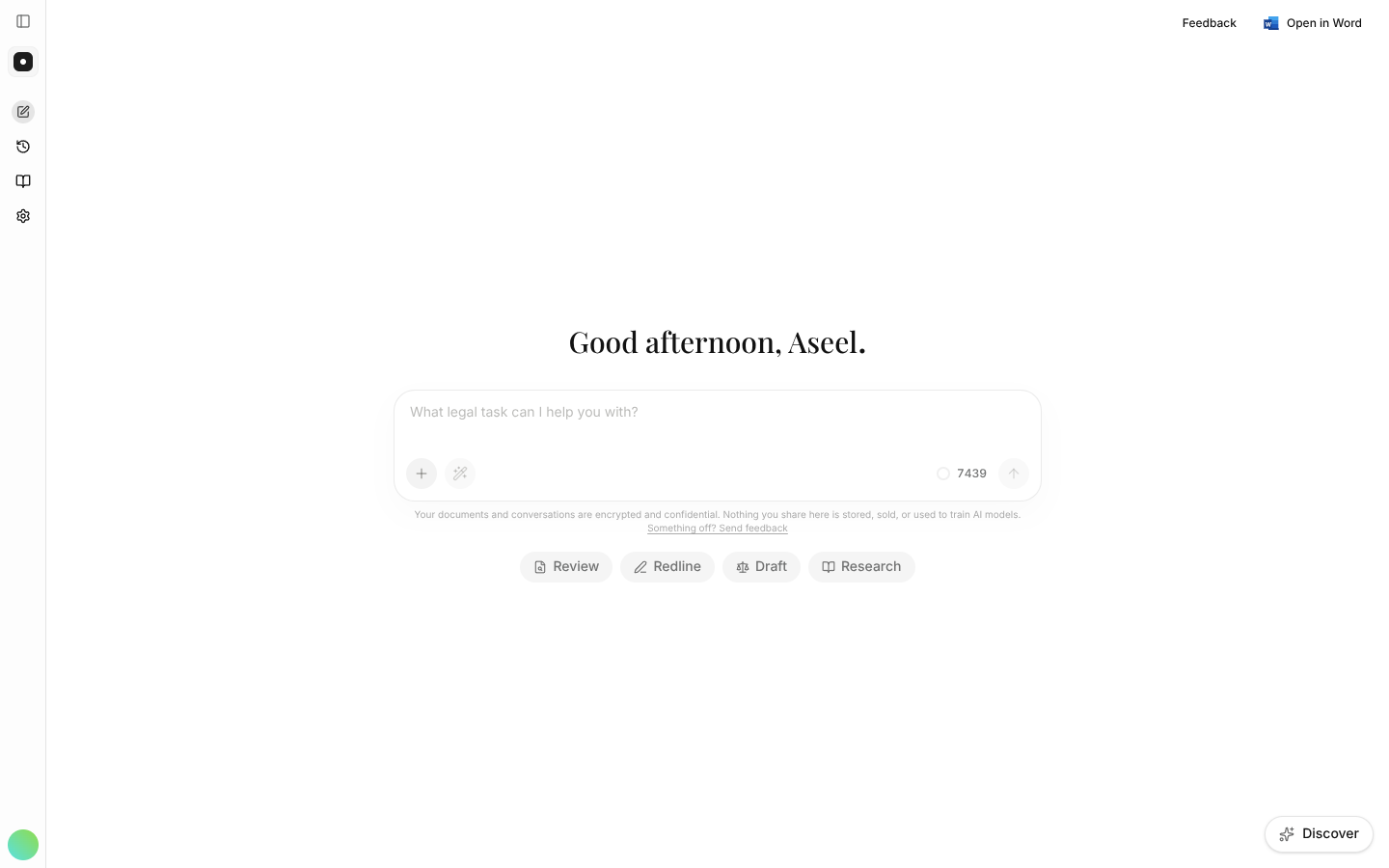
Already in the web app? The Open in Word link, in the top-right of the assistant, launches the add-in directly.