

Cloud storage
Connect OneDrive, SharePoint or Google Drive to import documents straight into your Vault.
If your documents already live in the cloud, there's no need to download and re-upload them. Connect a provider once and you can browse and import its files into your Vault without ever leaving instaSpace — so the contracts and templates you work from are always within reach.
By the end you'll have a cloud provider connected and know how to import from it.
This is for anyone, in Settings → Integrations → Connectors. instaSpace connects to OneDrive, SharePoint and Google Drive.
Connect a provider
Open Settings → Integrations
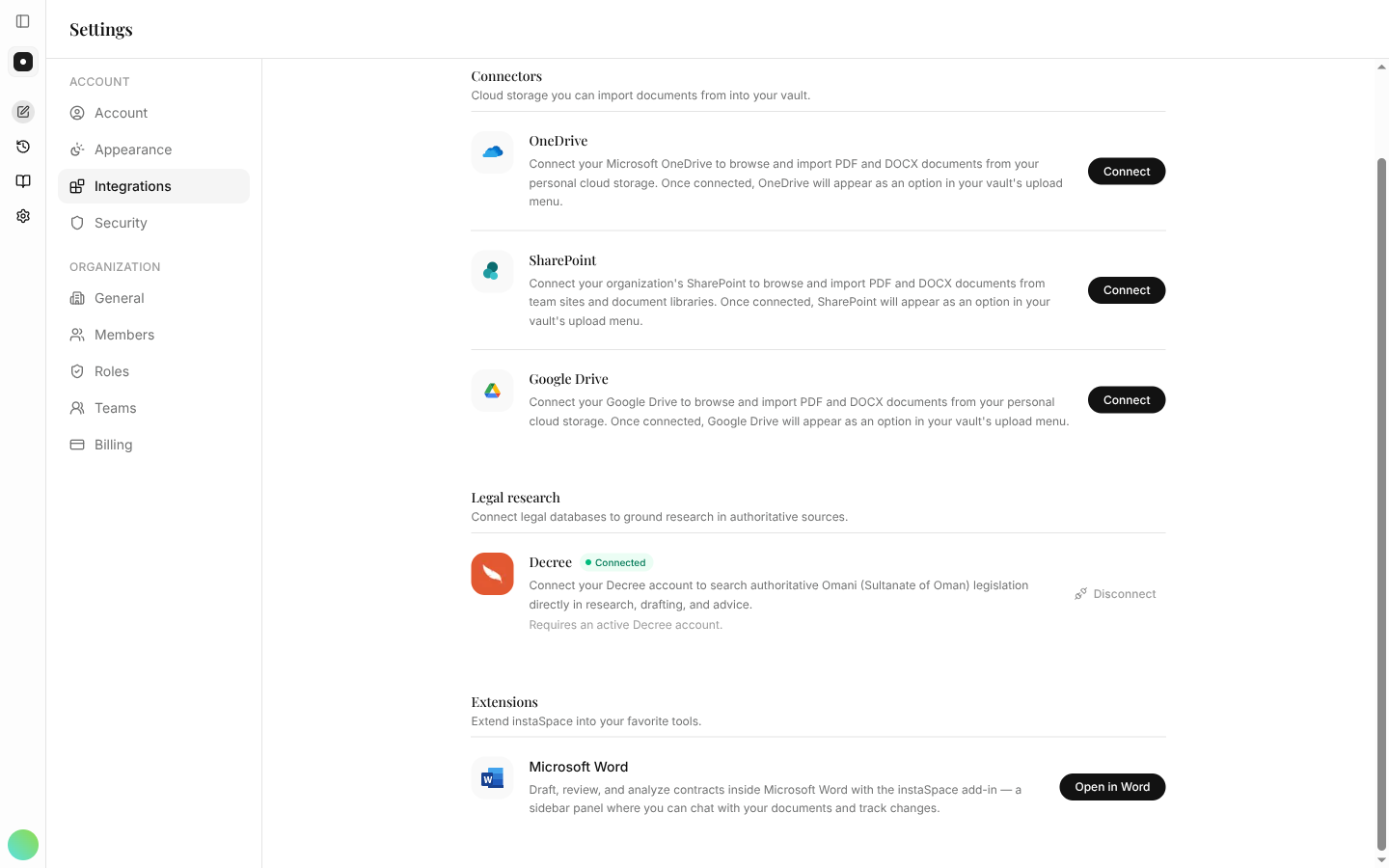
Choose Integrations in settings. Under Connectors you'll find OneDrive, SharePoint and Google Drive, each with a short description and a Connect button.
Authorize the provider
Select Connect next to the provider you use and sign in through its secure authorization window. instaSpace only ever reads the documents you choose to import, and the connection is tied to your account.
Import from the Vault
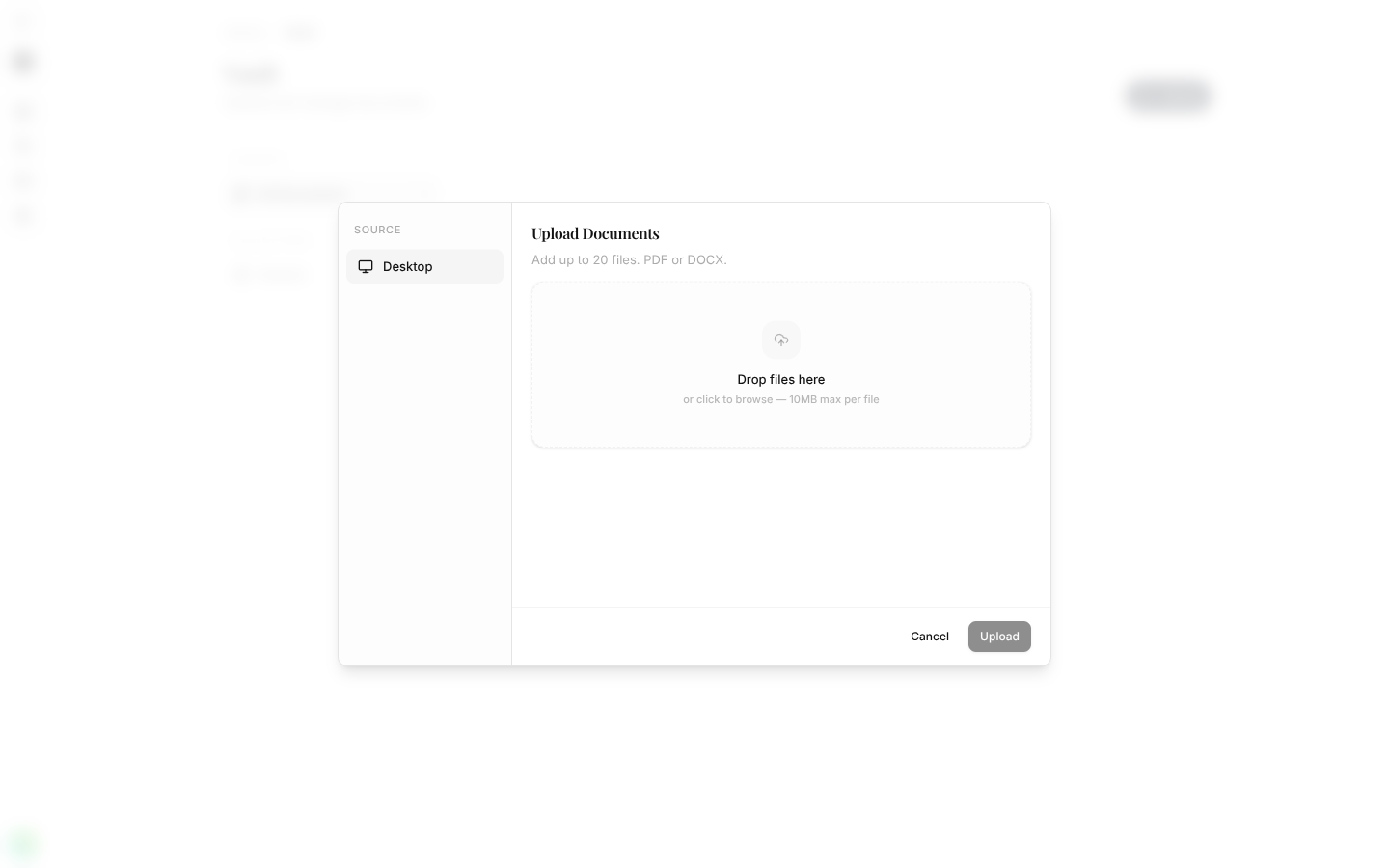
Once connected, the provider appears as a source in your Vault's upload dialog, alongside Desktop. Pick it to browse your cloud storage and pull in PDF or DOCX documents — no downloading, no re-uploading.
Manage or disconnect
Return to Settings → Integrations any time to check a connection or disconnect a provider, which stops any further access at once.
Pair this with the Vault: imported documents land where you can attach them to any task in one click — and where your whole team can reach the shared ones.