

Raising a request
Submit legal work with enough context that nobody has to come back and ask.
The difference between a request that moves and one that stalls is almost always the same: whether the person raising it said what they actually need, by when, and against whom. This lesson is about giving the legal team enough to act on without a second round of email.
By the end you'll have raised a request with the context, type and attachments that make it actionable.
This is for everyone in the workspace — raising a request needs no special role.
Open the dialog
Use New → New request at the top of the left rail, or press C on the requests page. The dialog is deliberately small: a title, a description, and four controls along the bottom.
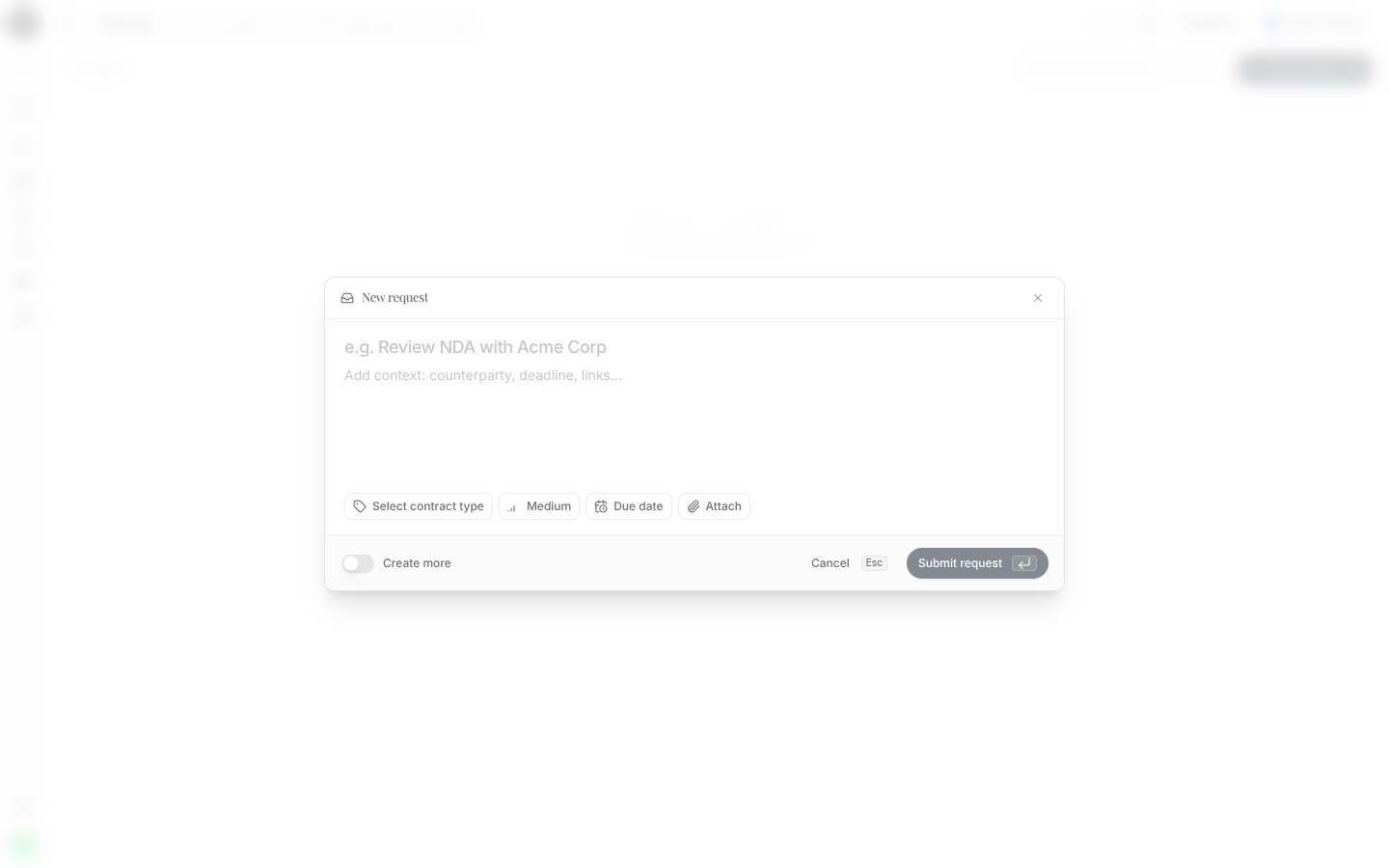
Write a title that names the work
"Review NDA with Acme Corp" tells the team what it is and who it's with. "Contract help" does not. The title is what everyone scans in the queue, so spend the extra four words.
Add the context in the description
Counterparty, deadline, the commercial background, links to anything relevant. Type @ to
mention a person or a team — they'll be notified when the request is created, which is the
fastest way to put it in front of the right practice group.
Set the matter type
Select matter classifies the work — NDA, services agreement, employment, and whatever else your workspace has configured. Types are managed per workspace, so they match how your firm actually categorises matters; see Matter types. You can also create a type inline if the right one doesn't exist yet.
Attach the documents
Attach takes PDF, DOC and DOCX files up to 20 MB. Attaching the draft at the point of asking saves the round trip where someone has to request it. Files are validated before anything is saved, so a rejected file never half-lands.
Submit
Submit request files it into the queue as New. If you're raising several at once, flip Create more and the dialog stays open.
What happens next
Your request lands at the top of All requests with status New and no assignee. From there it's the legal team's to triage — see Triage & assignment. You'll be notified when someone comments or mentions you, and you can follow the whole thing on the request's own timeline.
A due date is optional, and it's worth setting honestly rather than defensively. Requests sort by soonest due date on the assignee's queue — an artificial deadline pushes real ones down the list.