

Filing work into a matter
Move a live conversation, the documents it produced, or an existing vault file into a matter's scope.
Work rarely starts in a matter. It starts as a question in a chat, and somewhere in the middle you realise it's a real piece of work that other people will need. Filing is how you move it without starting over.
By the end you'll know how to file a conversation from the composer, what moves with it, and how to take it back out.
Where to look: the + button beside the composer, in both the web app and the Word add-in.
From the composer
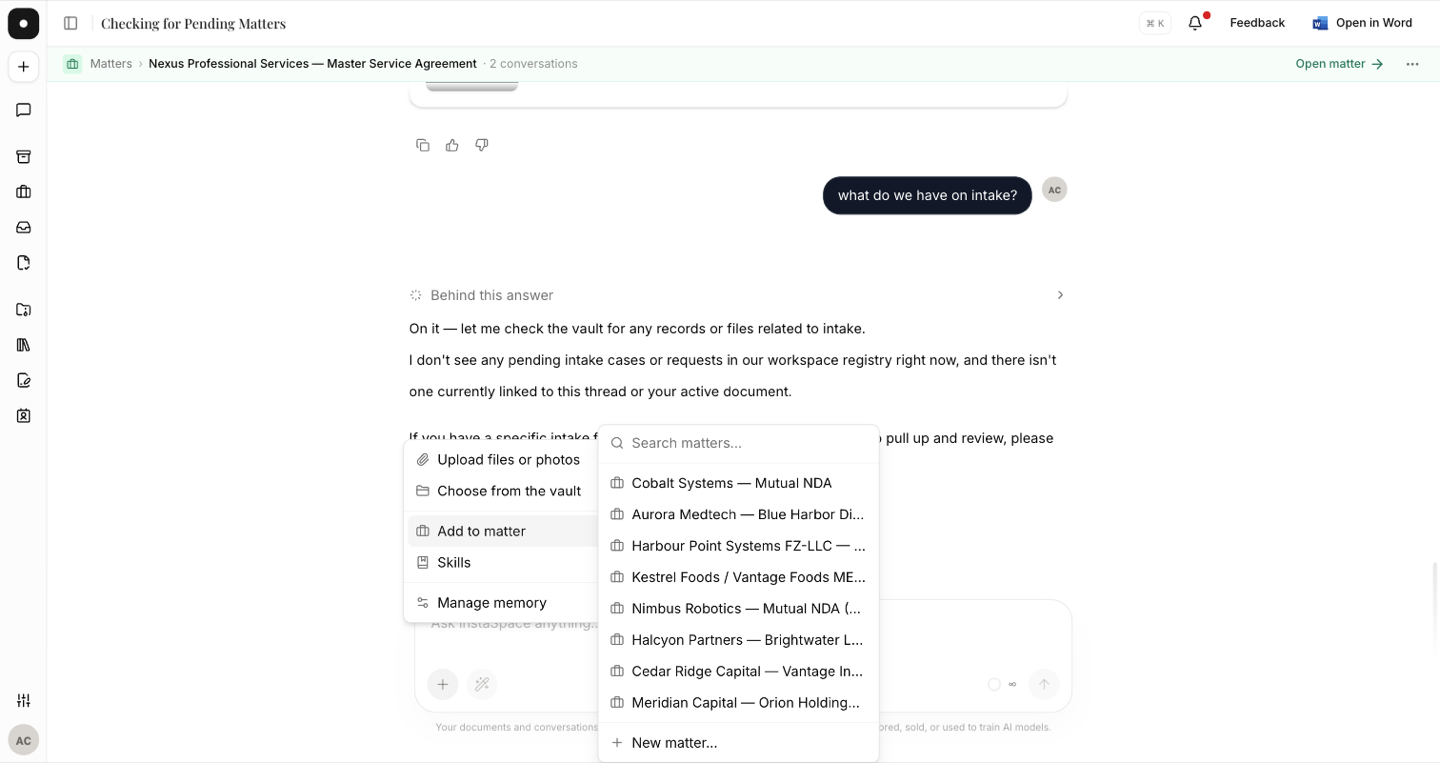
The composer's + holds everything that rides a message, not just attachments. Under Add to matter it lists the workspace's open matters, with a tick on the one this conversation is already in, and New matter… at the bottom.
- Picking a matter files the conversation into it.
- Picking a different one moves it.
- Picking the one already ticked removes it from that matter.
The Word add-in has the same menu and sends the assistant the same context, so filing from a document you're drafting in Word works identically.
What moves with the conversation
Filing carries the conversation and the documents it produced. A chat that drafted a distribution agreement and two side letters files all three into the matter's Documents tab, marked drafted, with their versions intact. You don't file the documents separately.
From the vault
A file that already exists in the vault is associated with a matter rather than copied into it. The matter's Documents tab shows it marked vault, and it stays where it was — one file, visible from both places.
Starting from the matter instead
The other direction works too. A matter's New conversation starts a chat already scoped to it, so everything that comes out of that chat is filed from the first message. Use it when you already know which matter the work belongs to.
Archived matters are deliberately absent from the picker. If a matter you expect isn't listed, check whether it was archived — restoring it puts it back in every picker.