

Reusable templates
Turn an agreement your team sends often into a one-click, consistent send.
If your team sends the same NDA forty times a year, preparing it forty times is waste — and worse, forty chances to place a signature block somewhere nobody intended. A template settles the shape of the document once: which details get filled each time, who signs, and where.
By the end you'll know how to create, review and publish a template, and how versions work.
Where to look: Library → Signature templates.
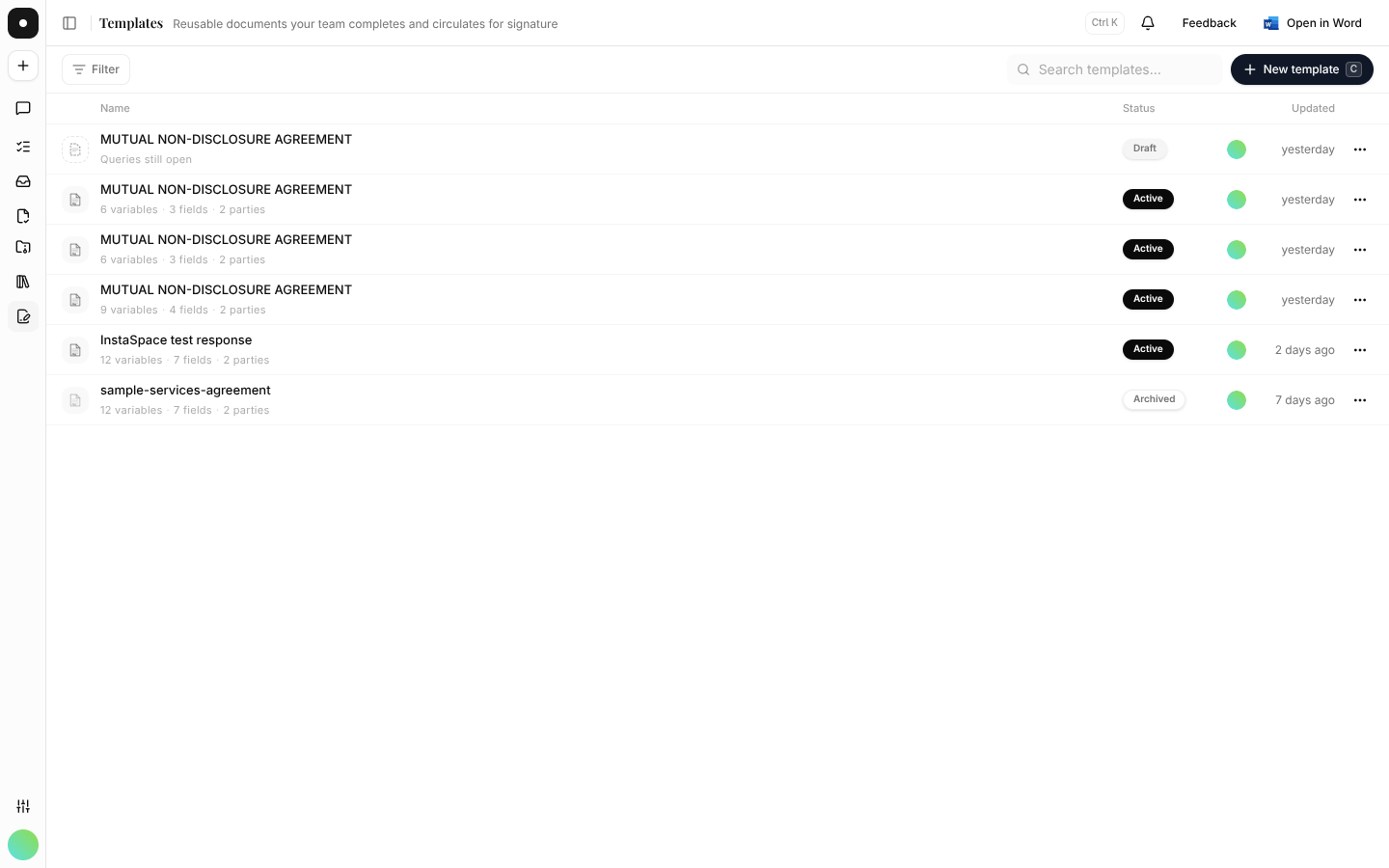
The templates list
Each template shows what it's made of — how many variables it takes, how many signature fields it carries, and how many parties are involved — plus its state: Draft, Active or Archived.
Three ways to create one
- Upload a document — New template takes a Word document (placeholders detected) or a PDF (fixed-position placement).
- From an AI draft — Create template in the draft panel assembles the draft, analyses it, and opens the review screen ready to name and publish.
- From something you just sent — after a one-off send, Save as template promotes the prepared document to a published v1.
Review before you publish
The review screen is the same panel as Prepare & Send, so nothing has to be learned twice. Because a template has no answers yet, a particular's row shows what its blank takes ("Date · document") where a send would show a value. Clicking a highlight in the document opens that field's settings — configuring fields is the job here.
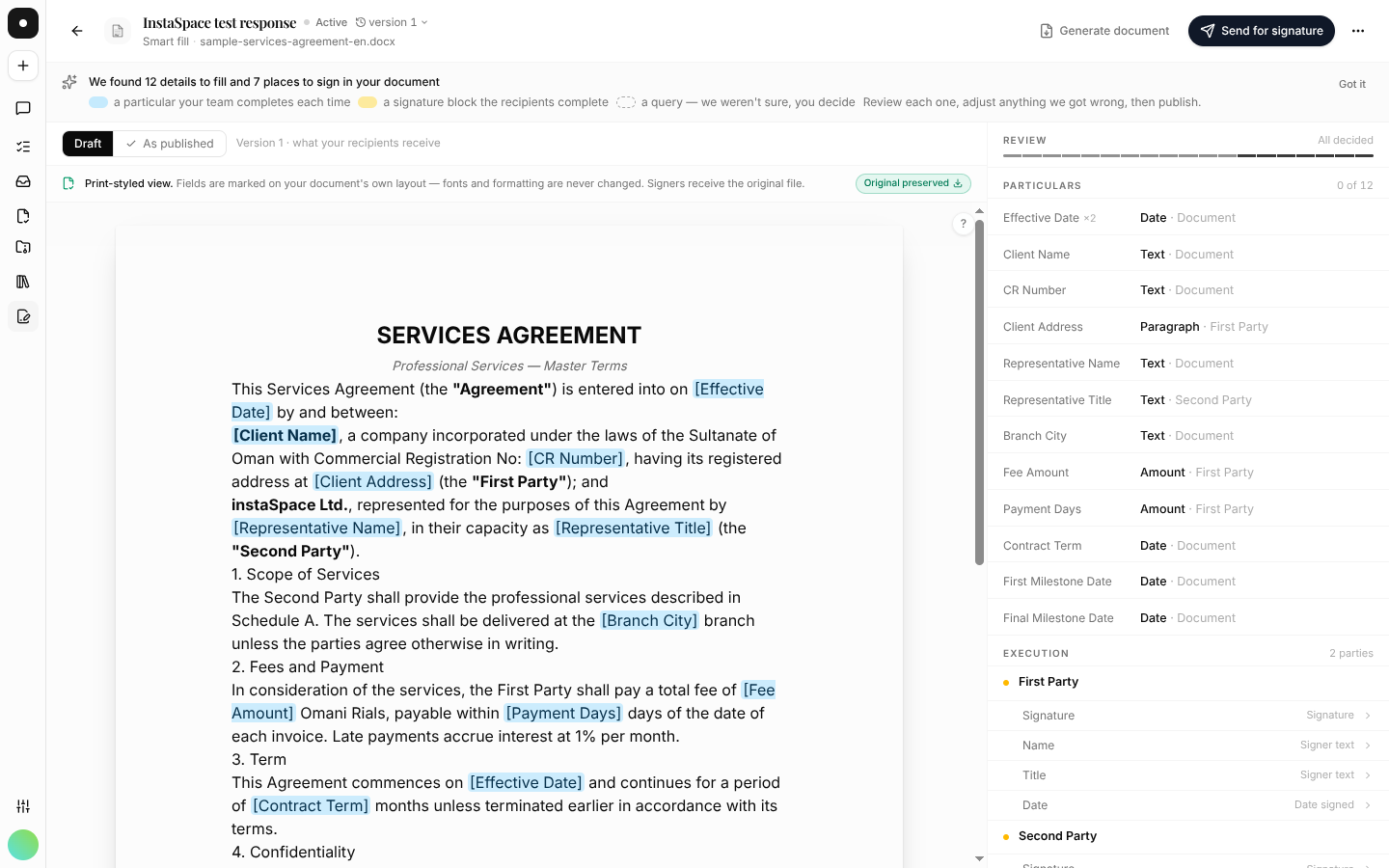
Work through the four groups:
| Group | What it holds |
|---|---|
| Queries | Anything the analyzer wasn't sure about. Must be empty to publish. |
| Particulars | The blanks your team completes on each send. |
| Execution | The parties and the blocks each one signs. |
| Not applicable | Marks it deliberately ignored — a date already printed, say. |
Check it as published, not just as drafted
A published template offers Draft and As published. The second renders the published version's own document with every signer block shown where it actually sits — which is the only way to catch a tag written into a table cell or against the wrong paragraph before a counterparty finds it.
It deliberately shows no page numbers, and says why: a Word template has none of its own, and filling reflows the document. Positions are confirmed per send on the Sign step.
Word templates and PDF templates behave differently on purpose. A Word template reflows as details are filled, so signatures are anchored to text and confirmed per send. A PDF template places at design time on fixed pages — right for forms, wrong for anything whose length changes.
Versions
Publishing creates a version. Edit a published template and it's flagged as having unpublished changes until you publish again — so a send always uses a version somebody deliberately released, not a half-finished edit. Archive a template you no longer send; existing requests made from it are unaffected.