

Send for signature
Take one agreement from a file on your desk to a circulated, tracked request.
This is the flow end to end, once through, with a document you have to hand. It takes a few minutes the first time and under a minute once the shape is familiar.
By the end you'll have prepared and circulated one agreement, and know where to watch it.
Where to look: Work → Signature requests, then Send for signature.
Pick the document
Send for signature opens a picker with three sources: upload from this device, choose straight from the Vault, or start from a template. Word documents get their placeholders detected automatically; PDFs go to fixed-position placement instead.
Sending something the assistant drafted? Don't come here at all — use Send for signature in the draft panel. The document is assembled and analysed in place, with the execution block's signature fields already detected.
Fill — decide and complete
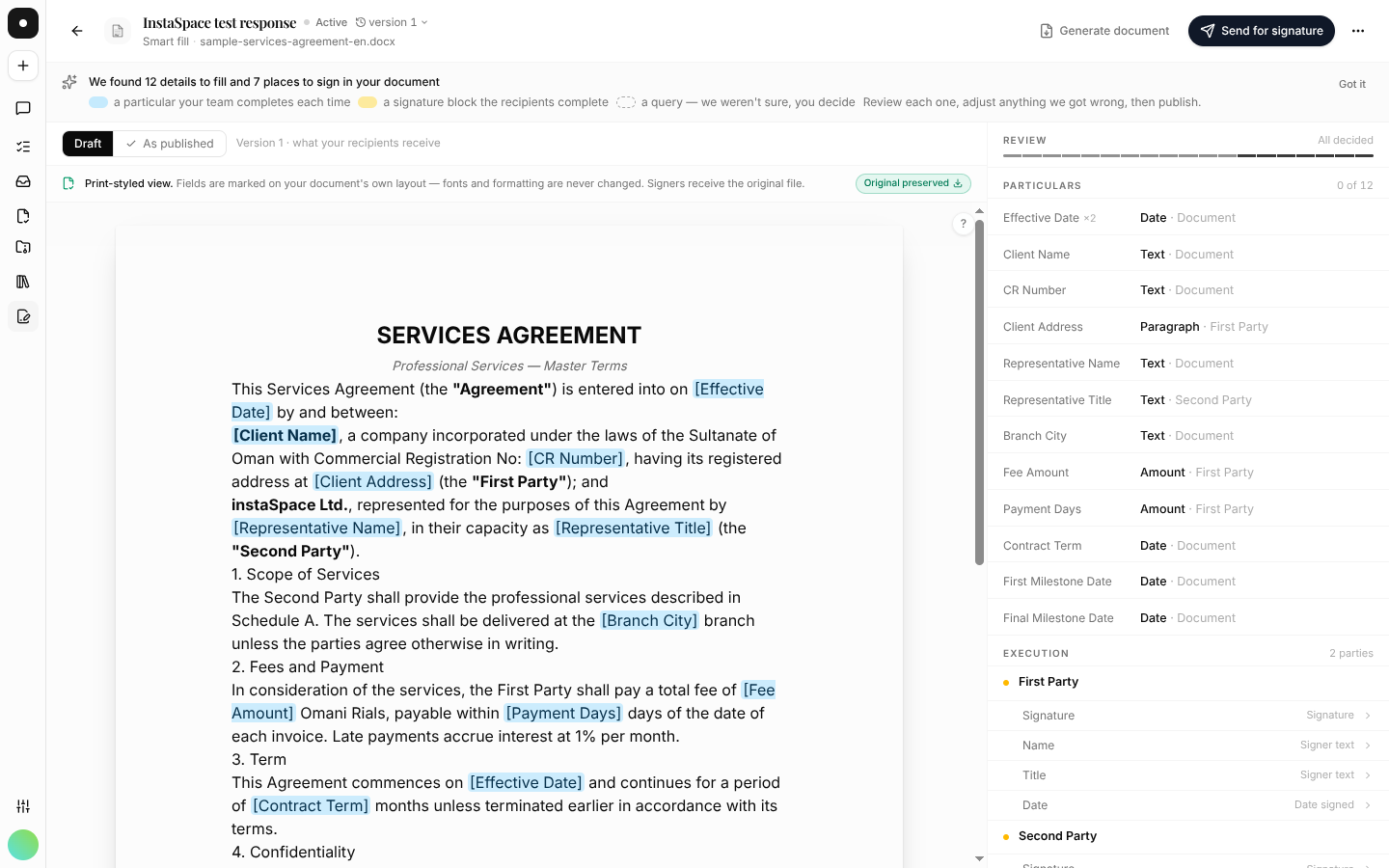
instaSpace analyses the document and tells you what it found: how many details need filling and how many places need signing. The highlights on the document are colour-coded — a particular your team completes each time, a signature block the recipients complete, and a query it wasn't sure about.
Answer the queries
Each query quotes the clause it sits in. Decide whether it's a particular, something a signer executes, or not applicable. Nothing can be sent while queries are open.
Type the particulars
Click a highlighted detail on the document — or its row in the schedule — and type the value. Press Enter to save and jump to the next unfilled detail, with the document scrolling along. Dates get a picker, amounts a numeric field.
A filled detail keeps its highlight and gains a dotted underline, so you can see at a glance what was supplied rather than printed. Hovering names the field and the placeholder it replaced. The document that ships carries none of these marks.
Check the execution lines
Execution shows one line per party with each signature block beneath it. Click a block to find it on the document and open its settings. Rename a party on the line that names it.
If you missed something, the primary button tells you: Before you can send lists every outstanding reason — undecided fields, unnamed fields, incomplete signers, exhausted quota — and each line jumps to where it's fixed.
Sign — place the blocks
Crossing into Sign generates the real document from your details. Place, move, resize or remove signature blocks directly on the true pages; everything autosaves, and the send dispatches from this exact working copy — what you see is what ships.
Change a detail here and the document regenerates in place with every placement preserved. Going back to Fill is the one route that discards placement, and it says so before it does it.
Send — circulate
Set who receives it and in what order, add a covering note, and read the Before it goes list. Then send.
The screen you land on is a record, not a receipt: the agreement named once, and the signing sequence drawn as a sequence — the first signer invited now, the rest after the person before them.
Then watch it
The request appears in Signature requests with its status and signer progress. See Tracking requests.
Prepared half of it and got pulled away? Close the tab. The whole preparation — triage, details, recipients and the live layout — is held on a draft, and Continue preparing at the top of the Signatures list picks it up exactly where you left it. Drafts are personal to whoever started them.