

Reviewing a case
The verification desk — read the proposal, check its evidence, resolve conflicts, then approve, ask or decline.
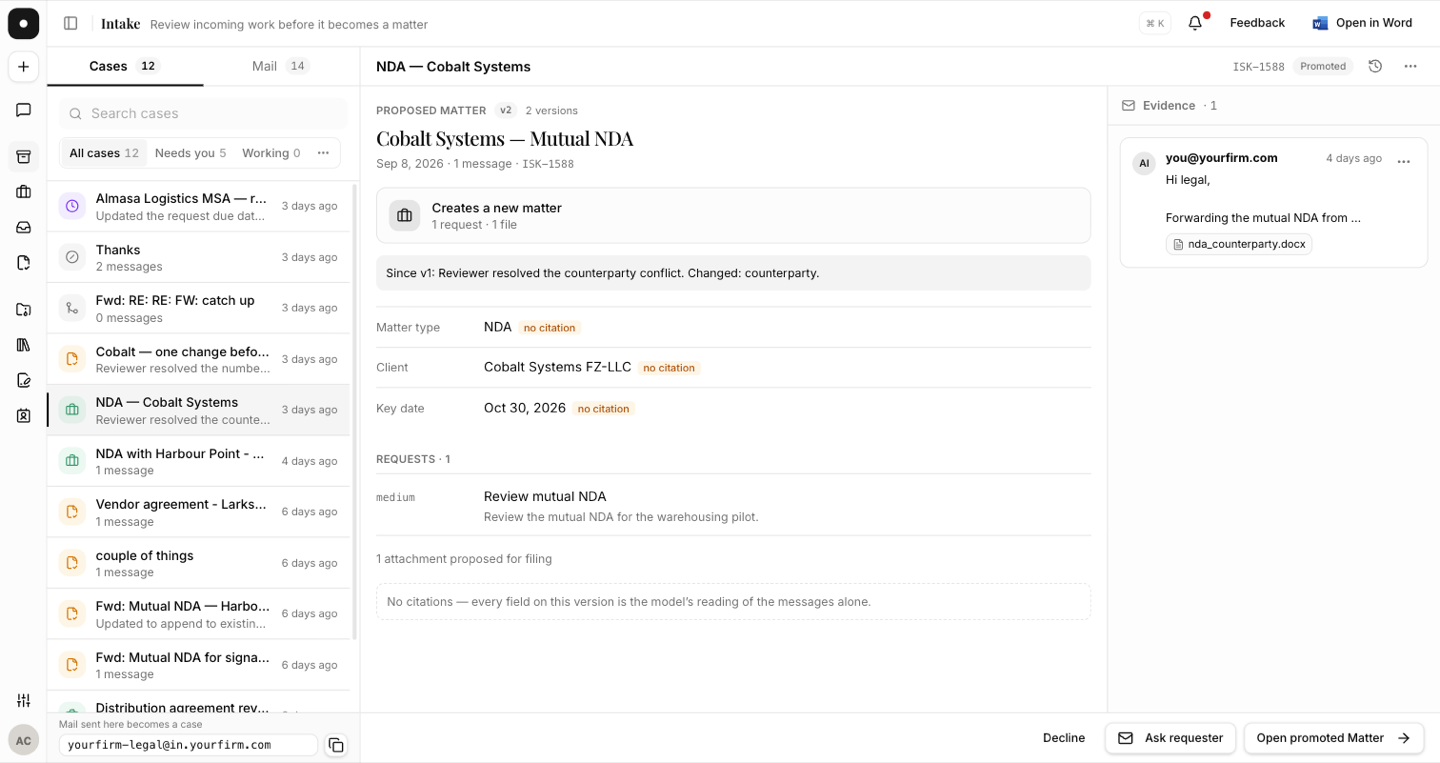
A case view is built for one job: deciding whether this becomes a matter, on evidence you can check. It is a verification desk, not a notification.
By the end you'll know what the outcome card states, how to resolve a conflict, how to ask the requester a question, and what approving actually creates.
Where to look: Work → Intake → Cases, then select a case.
Start with the outcome
The proposal opens with a card stating plainly what approving will do:
Creates a new matter — 4 requests · 2 files
or, when the case continues work you already have:
Adds to "Beacon Systems — Distribution" — 1 request · 1 file
If the proposal suggests a matter type your workspace doesn't have, the card says so too — "Also creates the matter type 'Distribution' — you will be asked to confirm".
Check the evidence
Every field on the proposal carries its source, so you can tell a matched record from a guess:
| Citation | Meaning |
|---|---|
| matched contact | Matched to your contact directory. |
| matched open matter | Matched to an existing open matter. |
| from your matter types | Taken from your workspace's own list. |
| matched member | Matched to a workspace member. |
| from a signal | Read from one of the case's messages. |
A field marked no citation is the model's reading of the messages alone. When a whole version has none, the proposal says so outright: "No citations — every field on this version is the model's reading of the messages alone."
The Correspondence tab holds every message on the case, each labelled with the rung that correlated it, plus any clarifications sent. Attachments open in an in-app preview — PDF, Word, images, text — with a Download button, so the evidence behind a proposal is one click away rather than something you take on trust.
Resolve conflicts before approving
Contradictions inside the case's own messages surface as structured conflicts — two deadlines for the same signing, two entity names for one counterparty, a claim the agreement may already exist. Each names the field in dispute and asks you to pick the value that wins, or type a replacement.
Conflicts block approval. The button reads "Resolve every conflict on the proposal first" and a counter shows your progress — 3 of 4 — until the panel says No conflicts — ready to approve.
Ask the requester
When something is missing rather than contradictory, Ask requester sends questions back through the original email thread. The assistant usually drafts them for you; you can edit or replace them freely, and only what you leave is sent — each non-empty line goes as one question, up to three.
The compose window previews exactly what the requester will receive, and the message is sent verbatim with no reformatting. An optional line mentions that you'll proceed in three days if there's no reply. The reply lands back on this case, and the case sits in Waiting on requester until it does.
The three decisions
| Action | What happens |
|---|---|
| Approve & create Matter | Opens the matter, files the proposed attachments, creates the requests, and sends the requester a letter. |
| Decline | Turns the case down and sends a letter saying so. |
| Ask requester | Sends questions; the case waits for a reply. |
Approving names both sides as parties on the new matter — matched to your existing contacts, or added to the directory — and sets the matter's key date. That is what makes intake matters visible to conflict checks and to "everything for this client" questions later.
If the proposal suggests a new matter type, approving asks for explicit confirmation naming it. The workspace's list can't grow because a model inferred a category from an email.
Splitting a case
One email holding unrelated asks doesn't have to be one matter. Select the requests that belong elsewhere and Split to a new case — the new case gets its own proposal scoped to only that work, attributed to the original sender, and its own approval.